FRONTLINES Roblox Boost FRONTLINES FPS
See enemies sooner by lowering fidelity without quitting the game.
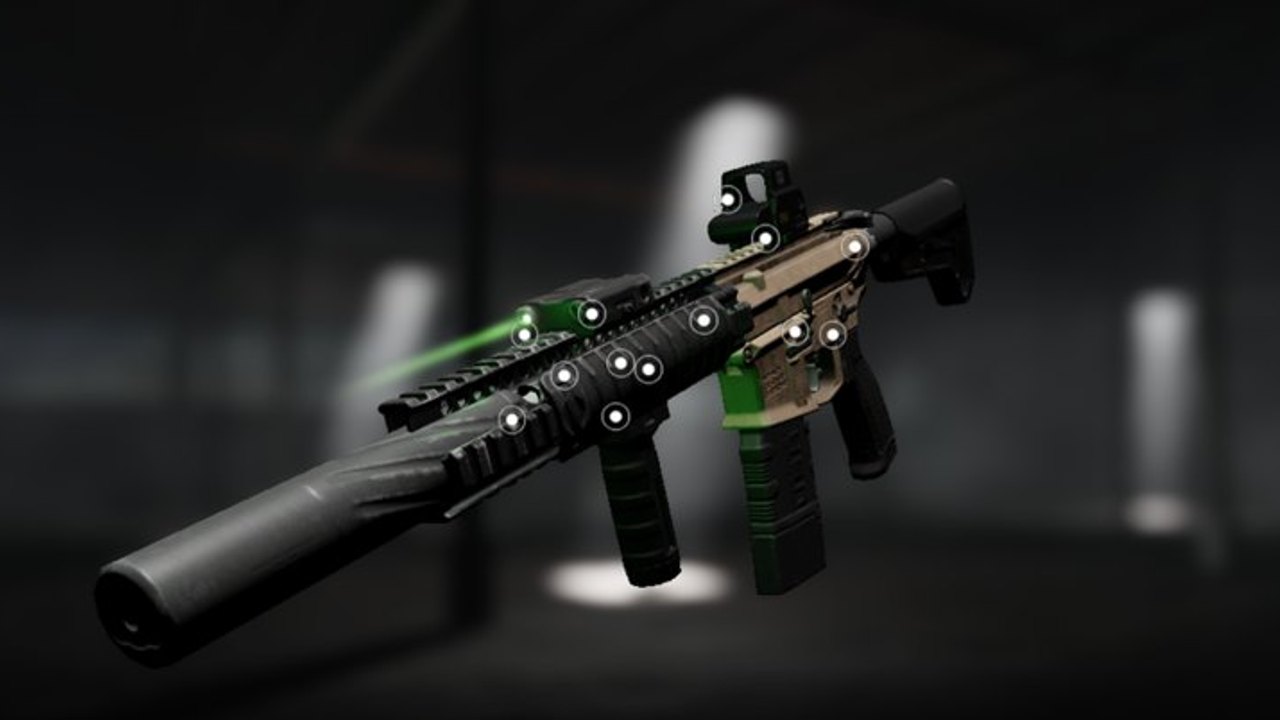
FRONTLINES impressed players because it looks closer to a console shooter than a typical Roblox experience. That fidelity has a cost: frame drops, muddy visibility, and mobile vibration complaints. This performance guide turns the official tip — set graphics to roughly 1–3 — into a full checklist.
In-experience graphics
- Press Esc to open settings.
- Switch graphics mode to Manual if available.
- Drag quality toward 1–3 on mid or low hardware.
- Re-test in a live gunfight, not the menu.
Lower settings often improve target separation against earthy maps. Winning fights matters more than screenshot realism.
Roblox client and OS tips
- Enable performance stats to watch ping, CPU, and GPU spikes.
- Close browser hardware hogs before queuing.
- On Windows, avoid fighting dozens of background apps; Game Mode can help some PCs.
- Keep your display’s refresh rate correct so frames are not wasted.
- Wired Ethernet beats unstable Wi-Fi for peeker’s advantage online.
Mobile-specific notes
Mobile players report limited HUD customization and constant haptics during firefights. Reduce device-level vibration if possible, keep thermal throttling in mind (remove bulky cases during long sessions), and play smarter angles from Maps and Modes instead of wide swinging PC users. The dedicated Mobile Guide covers HUD limits, haptics, and a verified community video on those pain points.
Aim feel after FPS changes
When frame rate jumps, sensitivity can feel different even if sliders never moved. Recalibrate with the sensitivity calculator and confirm binds in Controls.
What performance will not fix
- Bad reload timing
- Wrong gun for the map
- Ignoring objectives
- Cheating (see scripts warnings)
Pair FPS work with Getting Started fundamentals and attachment control from Attachments.
Network vs graphics
If frames are fine but enemies teleport, you have a network problem. Try switching Wi-Fi bands, closing downloads, or testing another server region if Roblox offers options. Votekick will not fix your ping — but it will fix some wallhackers via Votekick and Hackers.
After patches
New effects can regress performance. Re-run this checklist after notes on the updates hub. Studio channels on official links sometimes mention optimization work — verify in your own Esc menu.
Hardware tier checklist
Low-end laptops and older phones: graphics 1, manual mode, close every browser tab, play wired if possible. Expect 30–45 FPS — compensate with tighter angles from Maps and Modes instead of reaction flicks.
Mid-range PCs: graphics 2–3, monitor refresh set correctly, disable Discord overlay if frame time spikes during fights. This is the sweet spot many MAXIMILLIAN players recommend in the experience description.
Strong desktops: you may run higher fidelity for clips, but competitive queues still benefit from clarity on earthy maps. Smoke and muzzle flash read cleaner when effects are toned down.
Visibility beats texture packs
FRONTLINES gunfights are won on target separation — seeing a helmet pixel before they see yours. Lower settings reduce foliage noise, shadow crawl, and particle clutter that hides crouch peeks. If enemies “appear late” at doorways, drop one graphics notch before blaming ping. Pair visual clarity with audio: footsteps matter as much as frames when someone pushes your Factory flank.
Post-patch performance ritual
After any note on the updates hub, re-open Esc settings. New cosmetics, map props, or mobile HUD tweaks can silently raise load. Re-test in a live 7v7 match, not the menu idle screen. If stutter returns only on one map, note it for your squad — Cavalcade-style mixed biomes stress weaker GPUs harder than flat TDM arenas. Scripts promising FPS unlocks belong on the scripts hub, not your client.
Clarity is a skill multiplier. Configure once, then spend attention on crosshairs instead of stutter.
Frequently Asked Questions
Quick answers for FRONTLINES operators.
What graphics level should I use?
Many players follow the official suggestion of roughly levels 1–3 for smoother play.
Does lower graphics reduce aim assist?
No meaningful fair-play downside — you mainly trade cosmetics for clarity.
Why is mobile harder?
Input precision and HUD limits. Improve positioning and read Controls.
Should I use FPS unlocker scripts?
Avoid unauthorized clients. Prefer stock settings and the checklist above; see scripts.
What next after stabilizing FPS?
Return to Getting Started loadouts and the weapons tier list.